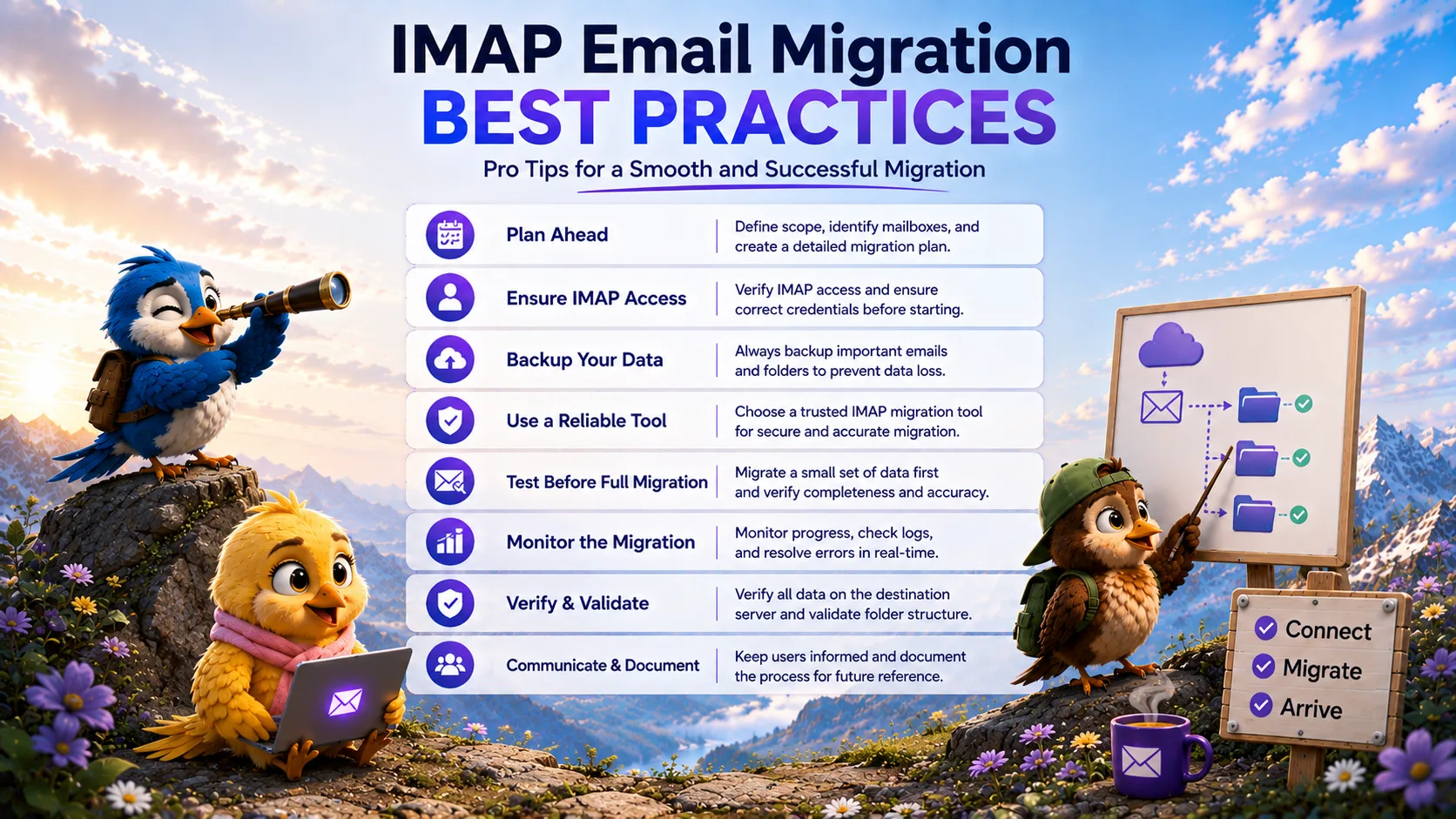
An email server transition is one of the most high-stakes IT projects a business can undertake. If the migration fails, communication stops, historical data is lost, and productivity halts.
Whether you plan to migrate emails from one IMAP server to another or move to a large cloud provider, success depends entirely on your methodology. By adhering to strict IMAP email migration best practices, IT administrators can eliminate downtime and ensure every message arrives safely.
Plan the Migration
The phrase "measure twice, cut once" is the golden rule of data migration. Do not connect a migration tool to your servers until your planning is complete.
Inventory Mailboxes
Audit the source server to identify active mailboxes, shared aliases, and dormant accounts. Migrating inactive accounts wastes time and money. Document the size of the largest mailboxes, as these will heavily influence how long the IMAP email migration takes.
Verify Source Access
Ensure you have the exact IMAP hostname and port (usually port 993). Determine if you have administrative impersonation rights, or if you will need to gather user passwords or generate App Passwords to bypass Multi-Factor Authentication (MFA).
Prepare Destination Mailboxes
Provision the destination mailboxes before the migration starts. Ensure the storage quotas on the new server are larger than the data coming from the source server. Apply the correct licenses if you are migrating to a platform like Microsoft 365 or Google Workspace.
Use Secure Connections
Never migrate email data over unencrypted connections. Always enforce SSL/TLS encryption (port 993). Using unencrypted IMAP (port 143) exposes the entire contents of your company's email—and the authentication credentials—to interception across the internet.
Test Authentication
Authentication failures are the leading cause of common IMAP migration errors. Test your mailbox mapping CSV file manually by logging into a sample of source and destination accounts to verify the passwords.
Run a Pilot
Never initiate a bulk migration on your first attempt. Select 2 to 5 mailboxes belonging to the IT department or non-critical stakeholders. Run a full migration for these users. Verify that the folder hierarchies transfer correctly and that the destination server accepts large attachments.
Migrate in Controlled Batches
If you are migrating hundreds of users, do not attempt to migrate them all simultaneously. A massive spike in concurrent IMAP connections will cause the source server's firewall to block your IP addresses. Break the migration into logical batches (e.g., by department) to respect server rate limits.
Monitor Progress and Handle Failures
Do not treat migration as a "set it and forget it" task. Actively monitor the migration dashboards. If a connection times out, investigate the mailbox. Often, a single corrupt 50MB attachment can cause a mailbox migration to stall.
Use Incremental/Delta Synchronization
The absolute best practice for avoiding downtime is the phased migration approach. Perform the initial bulk migration in the background over several days while users continue to work on the old server. Just before you are ready to switch systems, perform an incremental "delta sync." This compares the source and destination and rapidly transfers only the newest emails.
Plan DNS/MX Cutover
At least 24 hours before your cutover, lower the Time to Live (TTL) on your domain's MX records to 5 minutes. When you finally update the MX records to point to the new server, this low TTL ensures the internet routing updates rapidly, minimizing the window where emails could be delivered to the old server.
Verify Migrated Data
Immediately after the cutover, perform a sanity check. Send test emails inbound from an external domain (like Gmail) and outbound to verify mail flow. Have users check their critical folders. (Remember to remind users what data can be migrated using IMAP so they don't panic when their calendars aren't present).
Keep Source Mailboxes Available During Transition
Never decommission the source server immediately after the cutover. Maintain the old server for at least 30 days. If a user realizes a critical subfolder was missing, you can easily retrieve it.
Common Mistakes to Avoid
The most catastrophic mistake is forcing users to change their passwords in the middle of a migration. If a user changes their source password, the migration tool's connection will drop immediately. Enforce a password freeze until the cutover is complete.
Final Best-Practice Checklist
For a complete, printable breakdown of every step required, review our comprehensive IMAP email migration checklist.
By following these best practices and utilizing a professional, automated tool like MigrateZilla, you can ensure a secure, data-loss-free transition to your new email environment.
Frequently Asked Questions
What is the best way to migrate large mailboxes via IMAP?
The best practice for large mailboxes is to migrate them in a separate batch from smaller mailboxes so they do not hold up the overall progress. You should also ensure your migration tool supports auto-resume capabilities so it can recover from timeouts during massive data transfers.
Should I tell my users about the migration?
Absolutely. Over-communication is a critical best practice. Notify users of the migration schedule, what data will transfer, and explicitly what data will not transfer (like calendars and contacts). Provide them with instructions on how to manually export their contacts before the cutover.
Why do I need to leave the old server online?
Leaving the source server online acts as your fail-safe backup. If DNS propagation takes longer than expected, some external senders may continue delivering emails to the old server. By leaving it online, you can perform one final delta sync a week later to retrieve those straggler messages.
MigrateZilla Technical Team
Technical guides from the MigrateZilla team covering email migration, IMAP, mailbox transfers, and related IT administration topics.
Ready to plan your IMAP migration?
MigrateZilla helps administrators transfer mailboxes between compatible IMAP servers with background migration and incremental synchronization.
Start Migration