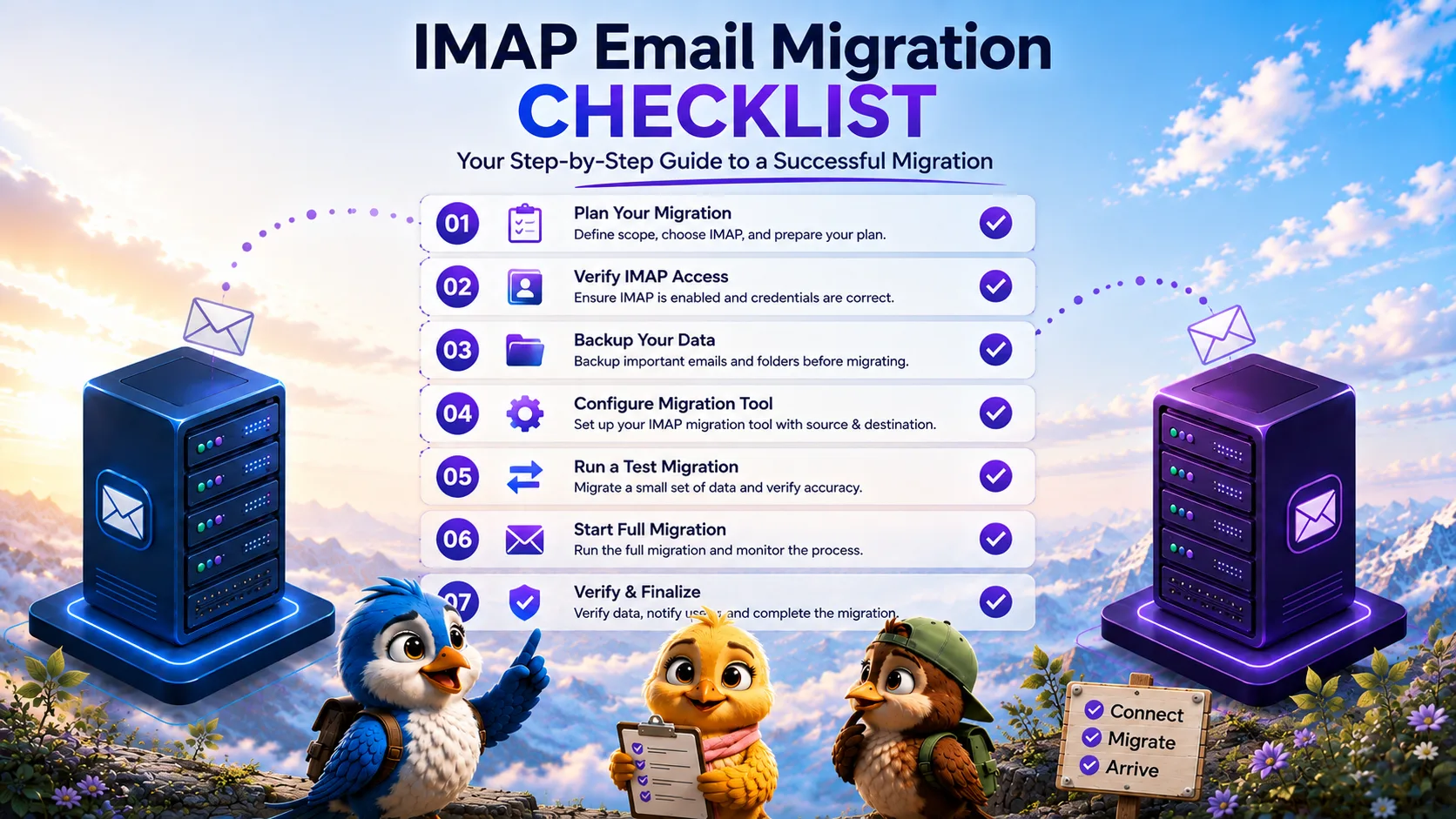
An email migration is one of the most visible IT projects in any organization. When executed poorly, missing emails, broken authentication, and server downtime immediately impact business operations. Because the IMAP protocol requires strict attention to server configuration and credentials, preparation is the key to success.
Whether you are learning how to migrate emails from one IMAP server to another or transitioning to a dedicated cloud platform, skipping a single pre-flight check can derail the entire project.
We developed this complete IMAP email migration checklist to help IT administrators, system administrators, and MSPs systematically plan, execute, and verify their mailbox transfers.
IMAP Migration Checklist Overview
A structured migration is broken down into distinct phases. You cannot safely cut over DNS records without first completing a pilot migration, and you cannot run a pilot migration without mapping user accounts and testing authentication.
Before Migration
The preparation phase involves discovering the limitations of your existing infrastructure and ensuring the destination can handle the inbound data.
Source Server Checklist
- Identify the correct IMAP hostname (e.g., imap.example.com).
- Verify the IMAP port (usually 993 for SSL/TLS, or 143 for STARTTLS/unencrypted).
- Confirm the source server supports concurrent IMAP connections without aggressive rate limiting.
- Check mailbox quotas to identify exceptionally large mailboxes that may take longer to migrate.
- Audit existing mailboxes to determine which accounts are active and which can be archived.
Destination Server Checklist
- Identify the destination IMAP hostname and port.
- Provision all target mailboxes on the new server.
- Verify that destination mailbox storage quotas exceed the source data size.
- Check if the destination server imposes strict limits on folder depth or character types in folder names.
- Ensure the destination server allows inbound IMAP connections from your migration tool's IP addresses.
Authentication Checklist
- Determine if the source server supports administrative impersonation (e.g., OAuth admin consent).
- If impersonation is not supported, collect or reset the user passwords for the source accounts.
- Identify how you will authenticate to the destination accounts.
- Test manual IMAP logins to both the source and destination using a standard email client (like Thunderbird) to rule out basic credential issues.
Security Checklist
- Identify if Multi-Factor Authentication (MFA) or Two-Step Verification is enforced on the source or destination.
- If MFA is enforced and OAuth is unavailable, generate App Passwords for the migration accounts.
- Ensure conditional access policies (like IP geo-blocking) will not block the migration tool.
- Verify SSL/TLS certificate validity on both servers to prevent connection drops.
Mailbox Mapping Checklist
- Create a CSV file mapping the source email address to the corresponding destination address.
- Ensure domain name changes (e.g., migrating from @old-domain.com to @new-domain.com) are correctly mapped.
- Map any shared mailboxes or generic aliases (e.g., info@, sales@) to their correct destinations.
- Double-check the CSV for typos or trailing whitespace.
Pilot Migration Checklist
A pilot migration is a controlled test using a small subset of mailboxes to identify common IMAP migration errors before affecting the entire company.
- Select 2-5 test mailboxes (preferably from the IT team or non-critical users).
- Configure the migration tool with the pilot credentials.
- Execute the initial sync for the pilot mailboxes.
- Verify that custom folders and subfolders transferred correctly.
- Verify that large attachments and deep folder hierarchies migrated without corruption.
- Check the migration logs for any "Authentication Failed" or "Connection Timeout" errors.
- Confirm that message read/unread status was preserved.
Bulk Migration Checklist
Once the pilot succeeds, you are ready to migrate the rest of the organization.
- Notify all users of the migration schedule and expected completion window.
- Upload the full mailbox mapping CSV to the migration tool.
- Start the bulk migration in logical batches (e.g., by department) if migrating thousands of users.
- Monitor the initial sync phase.
Monitoring Checklist
- Check the active migration dashboard for throttled or stalled connections.
- Identify mailboxes that fail to authenticate and correct their passwords.
- Watch for exceptionally large mailboxes that may hold up a batch completion.
Delta Sync Checklist
Because users will continue receiving emails on the source server during the initial sync, you must perform delta (incremental) synchronizations to catch the newest emails.
- Schedule a delta sync 24 hours before the DNS cutover.
- Schedule a final delta sync immediately prior to the DNS cutover to ensure the destination is perfectly synchronized.
DNS/MX Cutover Checklist
The cutover is the moment mail delivery switches from the old server to the new one.
- Lower the TTL (Time to Live) on your domain's existing MX records to 300 seconds (5 minutes) at least 24 hours in advance.
- Update the MX records to point to the new destination server.
- Update SPF, DKIM, and DMARC records to authorize the new mail server.
- Run one final delta sync to capture any emails delivered to the source server during DNS propagation.
- Instruct users to log into their new mailboxes.
Post-Migration Verification
- Send a test email from an external domain (like Gmail) to ensure inbound routing works.
- Send a test email to an external domain to ensure outbound routing and SPF/DKIM are configured correctly.
- Have users verify their folder structures.
- Download and archive the final migration logs.
- Keep the source mail server online (but inactive) for 30 days as a backup.
Common Mistakes
The most common mistakes administrators make during an IMAP migration include forgetting to generate App Passwords for MFA-enabled accounts, failing to lower DNS TTLs ahead of time (causing long delays during the cutover), and shutting down the source server immediately before performing a final delta sync.
Printable/Quick Checklist
Here is a condensed checklist for quick reference during your migration:
- 1. Verify source/destination IMAP hostnames and ports.
- 2. Provision destination mailboxes with sufficient quotas.
- 3. Gather passwords or generate App Passwords (if MFA is enabled).
- 4. Create a CSV mailbox mapping file.
- 5. Run a 2-5 user Pilot Migration and verify folders.
- 6. Run the initial Bulk Migration.
- 7. Lower DNS TTLs.
- 8. Run an incremental Delta Sync.
- 9. Update MX, SPF, and DKIM records.
- 10. Run the final Delta Sync to catch straggler emails.
- 11. Verify inbound/outbound mail flow on the new server.
If you are managing a complex migration and need to automate these steps safely, MigrateZilla provides a comprehensive platform designed specifically for IT professionals.
Frequently Asked Questions
Why do I need a pilot migration?
A pilot migration allows you to test your credentials, verify firewall rules, and ensure that complex folder structures map correctly to the new server before you commit to migrating hundreds of users. It prevents small configuration errors from causing widespread failures.
What is a delta sync in email migration?
A delta sync (or incremental sync) compares the source and destination mailboxes and transfers only the new emails that have arrived since the last synchronization. This allows you to migrate the bulk of historical data over several days, and then quickly sync the newest emails right before cutting over DNS.
Why should I lower the DNS TTL before migration?
Lowering the Time to Live (TTL) on your MX records tells global DNS resolvers to cache your records for a shorter period (e.g., 5 minutes). When you update the MX records during the cutover, the change will propagate across the internet much faster, minimizing the time during which emails might be delivered to both the old and new servers.
MigrateZilla Technical Team
Technical guides from the MigrateZilla team covering email migration, IMAP, mailbox transfers, and related IT administration topics.
Ready to plan your IMAP migration?
MigrateZilla helps administrators transfer mailboxes between compatible IMAP servers with background migration and incremental synchronization.
Start Migration