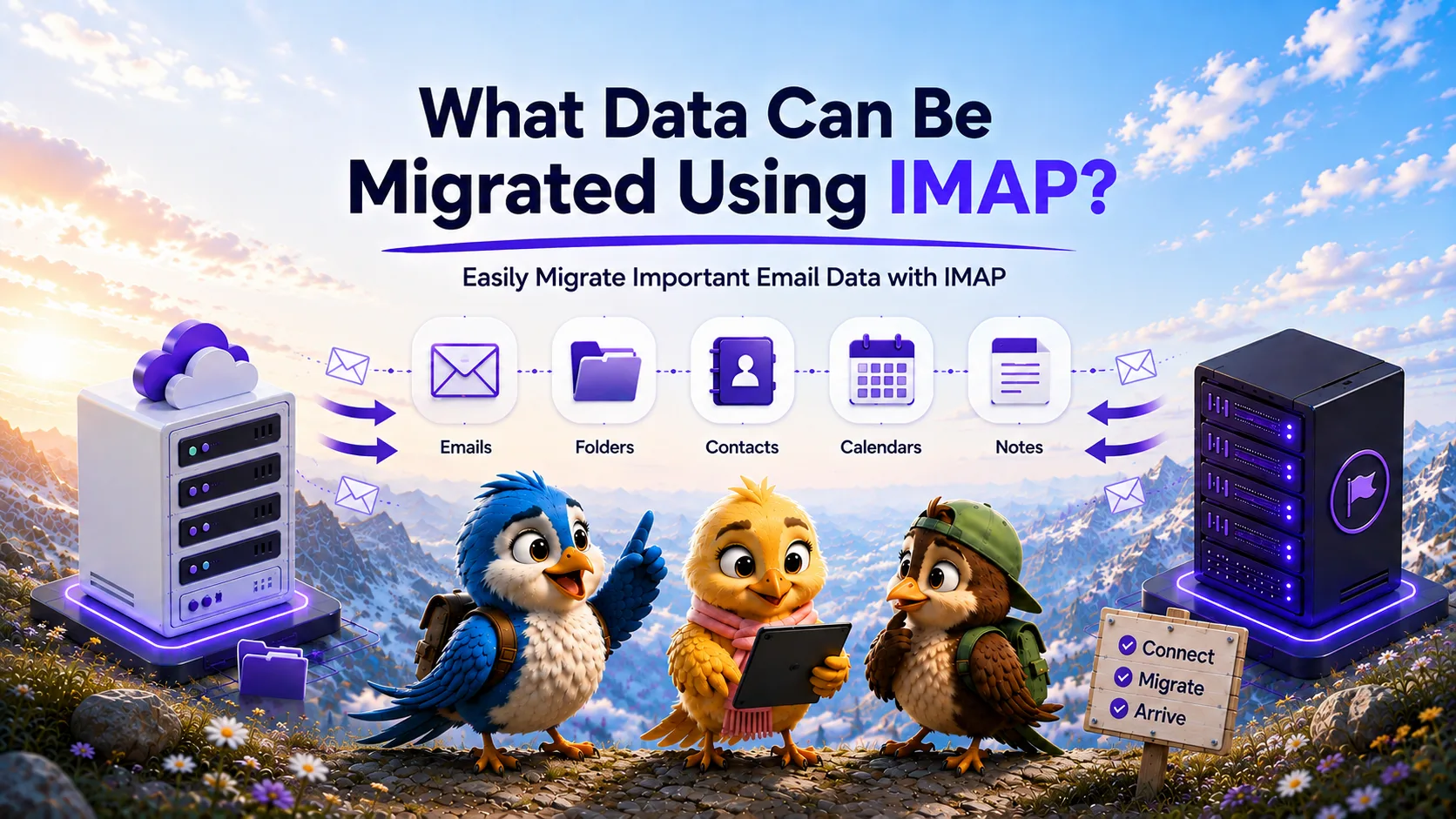
When IT administrators plan to migrate emails from one IMAP server to another, the most common question from stakeholders is: "Will everything move over?"
The short answer is no. IMAP is a highly specialized protocol. It is exceptionally good at synchronizing email messages, but it is completely blind to other types of business data. Understanding exactly what data can be migrated using IMAP—and communicating these limitations to your users—is critical to a successful migration project.
What IMAP Migration Transfers
During an IMAP email migration, you are relying on the IMAP protocol to read the source data and replicate it on the destination. You can expect the following email data to transfer successfully:
Email Messages
All standard email messages within the mailbox will transfer. This includes plain text emails, HTML-formatted emails, and the raw MIME headers (which contain the To, From, CC, and BCC information).
Attachments
Standard email attachments (PDFs, Word documents, images) are encoded within the email message body itself (usually via Base64 encoding). Because they are part of the message, IMAP transfers them seamlessly. However, if an attachment exceeds the destination server's size limit, that specific message may be rejected.
Folders and Subfolders
IMAP perfectly replicates folder hierarchies. Standard folders (Inbox, Sent Items, Drafts, Trash/Deleted Items) and user-created custom folders (e.g., "2023 Invoices") will be recreated on the destination server, and the messages will be placed in their corresponding folders.
Message Flags
IMAP supports system flags. The most critical flags—`\Seen` (Read status), `\Answered` (Replied to), and `\Flagged` (Starred/Important)—are generally preserved during a high-quality migration.
Dates and Headers
The original date and time the email was sent or received will remain intact. A professional migration tool preserves the `INTERNALDATE` attribute so that emails do not suddenly appear as if they were all received on the day of the migration.
What Standard IMAP Does Not Normally Transfer
This is where most migration projects hit roadblocks. If users expect their entire digital workspace to migrate, they will be disappointed. Because IMAP only understands email, the following data will NOT transfer:
Contacts and Address Books
IMAP does not govern address books. Contact data is usually synchronized using CardDAV or proprietary APIs (like Exchange/MAPI). An IMAP migration will leave all contacts behind.
Calendars and Meetings
Calendar events, meeting invitations, and scheduling data are synchronized using CalDAV or proprietary APIs. None of this data will migrate via IMAP.
Tasks and Notes
Similar to calendars, task lists and digital notes (like Outlook Notes) are outside the scope of IMAP.
Server-Side Rules and Signatures
Auto-forwarding rules, Out-of-Office (vacation) responders, and email signatures are stored locally in the email client or managed by the server's specific mail transfer agent (MTA). IMAP cannot extract or replicate these settings.
Account Settings and Passwords
You cannot migrate actual user accounts or passwords. The destination mailboxes must be manually provisioned with new passwords before the IMAP migration begins.
Why IMAP Has These Limitations
As explained in our IMAP vs POP3 comparison, IMAP was designed in the 1980s strictly as an "Internet Message Access Protocol." Before unified platforms like Microsoft 365 existed, email, calendars, and contacts were all managed by entirely separate systems.
How to Plan Around Them
To ensure a smooth transition, IT administrators must plan a two-pronged migration approach.
- **Phase 1 (Automated):** Use an IMAP migration tool to transfer the bulk email data, folders, and attachments server-to-server.
- **Phase 2 (Manual/Scripted):** Instruct users to export their Contacts (as CSV/vCard files) and Calendars (as ICS files) from their old webmail or desktop clients, and manually import them into the new system after the cutover.
Verification Checklist
When communicating with stakeholders, explicitly state what is out of scope. We recommend adding these constraints to your IMAP email migration checklist so that users are not surprised when they log into their new mailboxes and find an empty address book.
Frequently Asked Questions
Will IMAP migration transfer my Outlook folders?
Yes. If your Outlook client is configured to connect to your source server via IMAP, all of the folders you see in Outlook (and the emails inside them) will be migrated to the destination server, provided they are synchronized with the source server.
Why didn't my contacts migrate with IMAP?
IMAP is an email-only protocol. It does not have the capability to read, format, or transfer contact information or address books. You must export contacts manually (usually as a CSV or vCard file) and import them into your new email provider.
Are email attachments migrated during an IMAP transfer?
Yes, attachments are encoded within the email message itself. When the IMAP tool migrates the email, the attachment is migrated with it. The only exception is if the attachment exceeds the maximum file size limit imposed by the destination mail server.
MigrateZilla Technical Team
Technical guides from the MigrateZilla team covering email migration, IMAP, mailbox transfers, and related IT administration topics.
Ready to plan your IMAP migration?
MigrateZilla helps administrators transfer mailboxes between compatible IMAP servers with background migration and incremental synchronization.
Start Migration