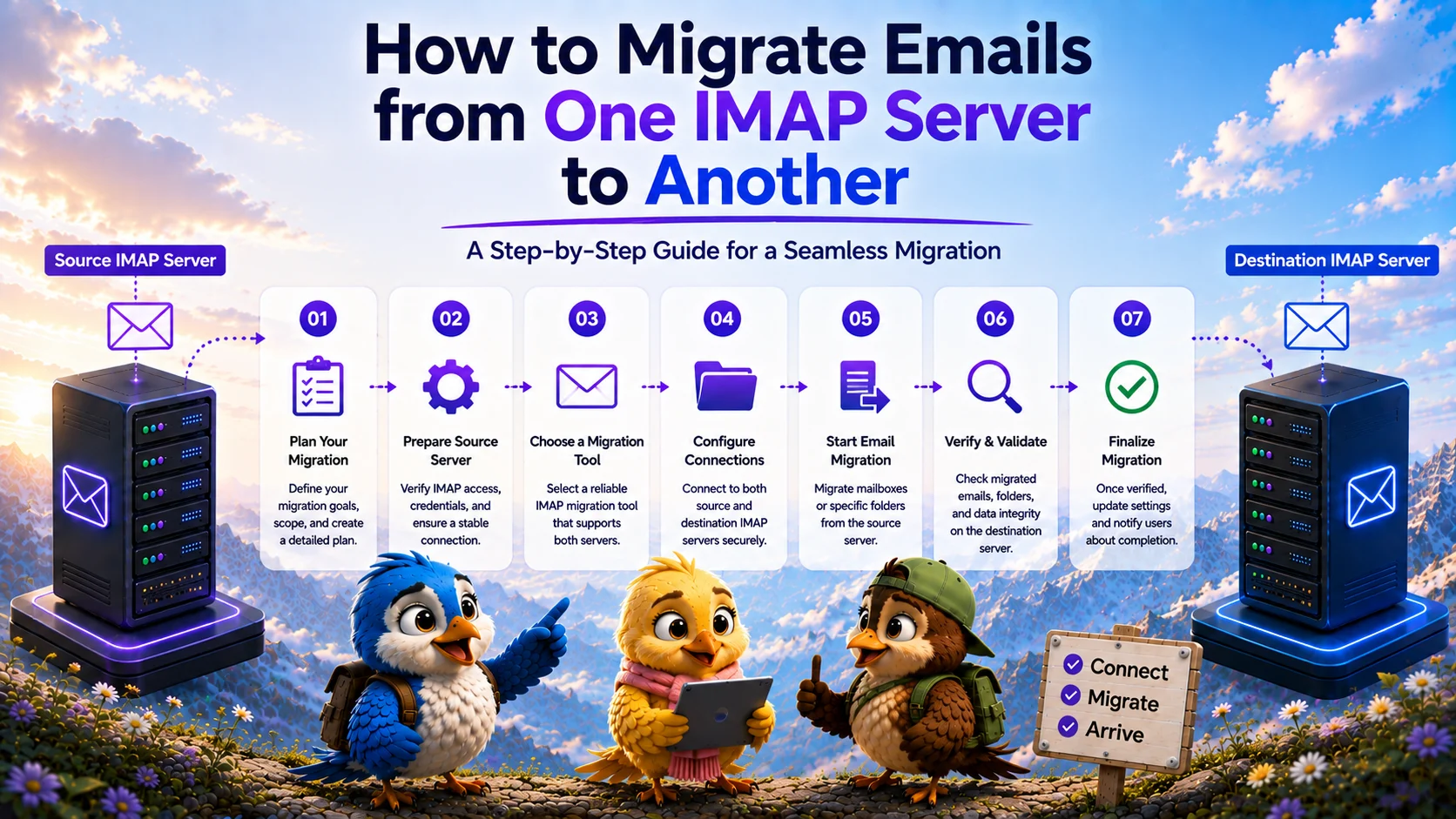
For IT administrators and MSPs, the need to migrate emails from one IMAP server to another arises frequently. Whether you are moving from an on-premises legacy mail server to a cloud provider, consolidating infrastructure after a merger, or simply changing hosting providers, the underlying challenge remains the same: securely moving mailbox data without disrupting business operations.
While many enterprise platforms offer proprietary migration APIs, IMAP (Internet Message Access Protocol) remains the universal language of email servers. Because almost all email servers support it, an IMAP email migration is often the most reliable—and sometimes the only—way to execute a server-to-server transfer.
What Is IMAP-to-IMAP Migration?
An IMAP-to-IMAP migration is the process of programmatically logging into a source IMAP server, reading the folder hierarchy and email messages, logging into a destination IMAP server, and recreating that data identically. Because IMAP synchronizes state, it allows migration tools to replicate the folder structure, messages, and read/unread status across servers.
When Should You Migrate Emails Between IMAP Servers?
You should typically migrate emails from one IMAP server to another in the following scenarios:
- Moving from shared cPanel hosting to a dedicated email platform.
- Migrating away from legacy platforms that do not support modern migration APIs (like Microsoft Graph).
- Consolidating multiple decentralized email servers into a single managed environment.
- Transitioning users between different internet service providers (ISPs) that only offer IMAP access.
What Data Can Be Migrated?
Before planning your cutover, it is crucial to understand what the IMAP protocol is designed to handle. IMAP is strictly an email protocol. During an IMAP mailbox migration, you can expect to transfer:
- Inbox, Sent Items, Drafts, and custom folders.
- Email messages and their attachments.
- Message metadata, including internal dates and read/unread flags.
However, standard IMAP does not support the migration of contacts, calendars, tasks, or server-side rules. If you need more clarity on data constraints, refer to our guide on what data can be migrated using IMAP.
What You Need Before Starting
Preparation is the most important phase of an email migration between servers. Attempting to start a migration without verifying prerequisites will almost certainly lead to IMAP migration errors.
IMAP Ports and Encryption
Modern mail servers enforce encrypted connections. You must identify the correct IMAP hostname and port for both the source and destination servers. In almost all secure environments, this will be port 993 (IMAPS) using SSL/TLS encryption. Unencrypted IMAP on port 143 is largely deprecated for WAN connections and should be avoided.
Ensure that your firewall rules allow outbound and inbound traffic on port 993 from the servers or the migration tool performing the transfer.
Step-by-Step IMAP-to-IMAP Migration
Executing an IMAP server migration requires a methodical approach. Follow these technical steps to ensure a safe transition.
Step 1: Provision Destination Mailboxes
IMAP cannot create user accounts. Before migrating data, you must provision identical mailboxes on the destination server. Ensure the destination mailboxes have sufficient storage quota to accommodate the incoming data, factoring in future growth.
Step 2: Map Users and Credentials
Create a mapping file (usually a CSV) linking the source email address to the destination email address. If the mail server does not support administrative impersonation (like OAuth admin consent), you will need to gather or reset the user passwords, or generate App Passwords for each account to bypass Multi-Factor Authentication (MFA).
Step 3: Perform a Pilot Migration
Never migrate all users at once without testing. Select 2-3 mailboxes (preferably from IT staff) and run a pilot migration. Monitor the migration tool's logs for authentication failures, connection timeouts, or folder mapping issues. Verify that complex folder hierarchies and large attachments transferred correctly.
Step 4: Execute the Bulk IMAP Migration
Once the pilot is successful, proceed with the bulk IMAP migration. Depending on the size of your organization, you may want to migrate users in organizational batches. Be aware of rate limits and server throttling. If you push too many concurrent connections, the source server may temporarily block the IP address.
Manual Migration vs Migration Tool
While it is technically possible to manually migrate emails by adding both accounts to a desktop client (like Outlook or Thunderbird) and dragging folders across, this method is highly prone to failure. Desktop clients often crash during large data transfers, offer no logging, and consume massive amounts of local bandwidth.
For any business scenario, you should use a dedicated migration tool that operates server-to-server, handles connection drops gracefully, and provides audit logs.
Incremental/Delta Synchronization
Because users continue to receive emails during the migration process, an initial sync is never enough. A professional migration strategy relies on delta syncs. An initial migration transfers the bulk of historical data over several days. Then, right before cutting over DNS, a final "delta sync" is performed. The migration tool compares the source and destination, transferring only the newly arrived emails.
DNS and MX Cutover
Once the final delta sync is complete, you must update your domain's MX (Mail Exchanger) records. The MX record directs internet email traffic to your mail server. Update the DNS zone file to point the MX records to the new destination server. Keep in mind that DNS propagation can take several hours, during which emails may deliver to either the old or new server.
How to Verify the Migration
After the MX records have propagated, instruct users to log into the new destination environment. Perform a post-migration check by verifying that folder counts match, recent emails are present, and users can successfully send and receive new messages.
IMAP Migration Best Practices
To ensure a smooth process, always follow IMAP email migration best practices. Over-communicate with your users, secure app passwords instead of disabling security policies, and always leave the source mail server online for at least 30 days after the cutover as a fail-safe backup.
How MigrateZilla Helps
If you need a reliable way to migrate emails from one IMAP server to another, MigrateZilla provides an automated platform designed for IT administrators. MigrateZilla handles server-to-server transfers securely, manages rate limits automatically, and supports infinite delta syncs to ensure you don't lose any data during your DNS cutover.
Frequently Asked Questions
How do I migrate email folders from one server to another?
To migrate email folders, use an IMAP migration tool to connect to the source and destination servers via port 993. The tool will read the existing folder hierarchy on the source and recreate it dynamically on the destination, maintaining the exact structure.
Can I migrate emails without passwords?
Standard IMAP requires credentials. However, if the mail server supports administrative impersonation (such as OAuth on Microsoft 365 or Google Workspace), an administrator can authorize the migration application to access all mailboxes without requiring individual user passwords.
What happens to emails arriving during the migration?
Emails arriving during the migration will be delivered to the source server until the MX records are updated. To capture these messages, administrators must run an incremental delta sync right before or immediately after the DNS cutover.
MigrateZilla Technical Team
Technical guides from the MigrateZilla team covering email migration, IMAP, mailbox transfers, and related IT administration topics.
Ready to plan your IMAP migration?
MigrateZilla helps administrators transfer mailboxes between compatible IMAP servers with background migration and incremental synchronization.
Start Migration