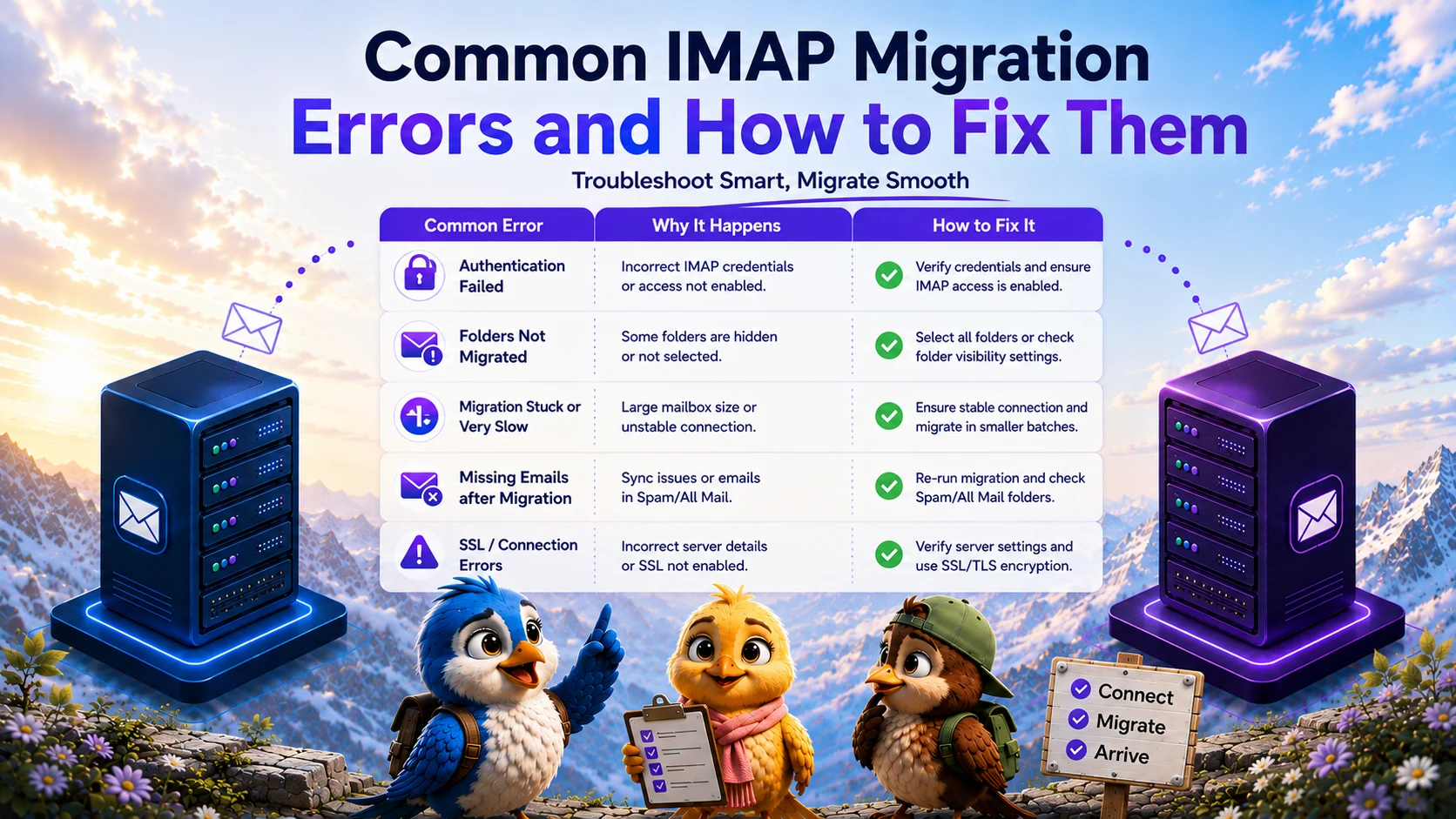
When you migrate emails from one IMAP server to another, you are moving gigabytes of data through a protocol that was originally designed for reading text emails over slow network links. Given the scale of modern data transfers, encountering IMAP migration errors is almost inevitable.
The key to a successful cutover is systematically troubleshooting these errors rather than randomly changing server settings. This guide outlines the most common IMAP migration problems IT administrators face and provides actionable solutions to fix them.
Common IMAP Migration Problems
Most IMAP errors fall into three broad categories: Authentication, Connection/Network, and Data Limits.
Authentication Failed
The most frequent error is a failure to log into the source or destination mailbox. If your migration tool logs an `IMAP authentication error` or `NO [AUTHENTICATIONFAILED] Invalid credentials`, check the following:
- **Possible Cause:** The password in your mapping file is incorrect.
- **Solution:** Log into webmail manually using the exact credentials in your CSV. If it fails, reset the user's password.
- **Possible Cause:** Multi-Factor Authentication (MFA) is enabled.
- **Solution:** A migration tool cannot respond to an SMS or authenticator app. You must generate an App Password for the account and use that in your mapping file instead of the user's standard password.
- **Possible Cause:** IMAP access is disabled.
- **Solution:** Some tenants (like Microsoft 365 or Google Workspace) disable IMAP by default. You must explicitly enable IMAP access for the mailboxes in the administrative console.
Incorrect IMAP Hostname
If the migration tool cannot resolve the server address, it will throw a DNS or host error.
- **Possible Cause:** You entered `mail.example.com` but the hosting provider requires `imap.example.com` or a specific shared server hostname (e.g., `host123.hostingprovider.com`).
- **Solution:** Check your hosting provider's documentation. Avoid using your own domain as the IMAP host unless you have a dedicated IP and SSL certificate covering `mail.yourdomain.com`.
Wrong Port
Using the wrong port will result in an immediate `IMAP connection error`.
- **Possible Cause:** You are attempting to connect via port 143 (unencrypted) but the server requires SSL.
- **Solution:** Change the port to 993 and ensure SSL/TLS is checked in your migration tool. Port 143 should rarely be used for migrations over the internet.
SSL/TLS Connection Error
If the connection establishes but drops during the handshake, the tool will report an `IMAP SSL error`.
- **Possible Cause:** The source server has an expired, self-signed, or mismatched SSL certificate.
- **Solution:** Update the SSL certificate on the source server. If you cannot update it, some migration tools offer a "Bypass SSL Validation" or "Accept Any Certificate" option, but this should only be used as a last resort.
Connection Timeout
Timeouts occur when the server accepts the connection but takes too long to respond to an IMAP command (like fetching a large attachment).
- **Possible Cause:** The source server is under heavy load or lacks sufficient RAM.
- **Solution:** Reduce the number of concurrent mailbox migrations. Instead of migrating 50 mailboxes at once, drop the batch size to 10 to relieve pressure on the source server.
Server Throttling and Rate Limits
If the migration starts successfully but suddenly drops all connections with "Connection Refused" errors, you have been throttled.
- **Possible Cause:** The source server's firewall (such as fail2ban) flagged the high volume of IMAP requests as a brute-force attack and blocked the migration tool's IP address.
- **Solution:** Allowlist the migration tool's IP addresses on the source firewall. If that is not possible, reduce the concurrency of the migration.
Folder Mapping Problems
Sometimes the IMAP connection succeeds, but folders fail to transfer or appear nested incorrectly on the destination.
- **Possible Cause:** The source and destination handle the IMAP `NAMESPACE` differently (e.g., `INBOX.Sent` vs `Sent Items`).
- **Solution:** A professional migration tool will automatically handle default folder mapping (mapping standard folders like Sent and Trash correctly between platforms). For custom folders, ensure the destination server supports the folder character types and nesting depth you are trying to migrate.
Missing Emails or Mailbox Size Problems
If the migration reports success but the user claims emails are missing, verify the data constraints.
- **Possible Cause:** The destination mailbox quota was exceeded.
- **Solution:** Increase the destination mailbox size limit and run an incremental delta sync.
- **Possible Cause:** The emails contained attachments that exceeded the destination server's message size limit (e.g., trying to migrate a 50MB message into Microsoft 365, which has a default limit of 35MB).
- **Solution:** These messages cannot be migrated via standard IMAP. The user will need to download the attachment manually from the old server.
How to Troubleshoot Systematically
When an IMAP migration failed, follow this sequence to isolate the issue:
- **1. Isolate the layer:** Is it a DNS issue, an authentication issue, or a data issue? (Check the migration logs).
- **2. Test manually:** Attempt to log into the failing mailbox using an incognito webmail session. If it fails there, the issue is your password mapping, not the migration tool.
- **3. Test via client:** Configure a desktop client (like Thunderbird) using the exact hostname, port, and credentials you provided to the tool. If Thunderbird cannot connect, the migration tool cannot connect.
Pre-Migration Testing
The best way to handle errors is to prevent them. As outlined in our IMAP email migration checklist, you must run a Pilot Migration. Testing 2-3 mailboxes will expose systemic issues (like strict firewall blocks or invalid SSL certificates) without causing widespread panic.
Frequently Asked Questions
Why does my IMAP migration keep timing out?
IMAP timeouts usually occur because the source server is overwhelmed by the number of concurrent connections or because a mailbox contains a massive, corrupt attachment. Reduce your migration batch size to lower the server load.
What does IMAP NO [AUTHENTICATIONFAILED] mean?
This specific IMAP error means the mail server rejected your login attempt. It is almost always caused by an incorrect password, a misspelled email address, or because the account requires an App Password due to Multi-Factor Authentication (MFA).
Can I skip SSL validation to fix a certificate error?
While some migration tools allow you to bypass SSL validation to temporarily bypass an expired certificate, it is highly insecure. It exposes the migration data to man-in-the-middle attacks. It is always better to install a valid SSL certificate on the source server.
MigrateZilla Technical Team
Technical guides from the MigrateZilla team covering email migration, IMAP, mailbox transfers, and related IT administration topics.
Ready to plan your IMAP migration?
MigrateZilla helps administrators transfer mailboxes between compatible IMAP servers with background migration and incremental synchronization.
Start Migration