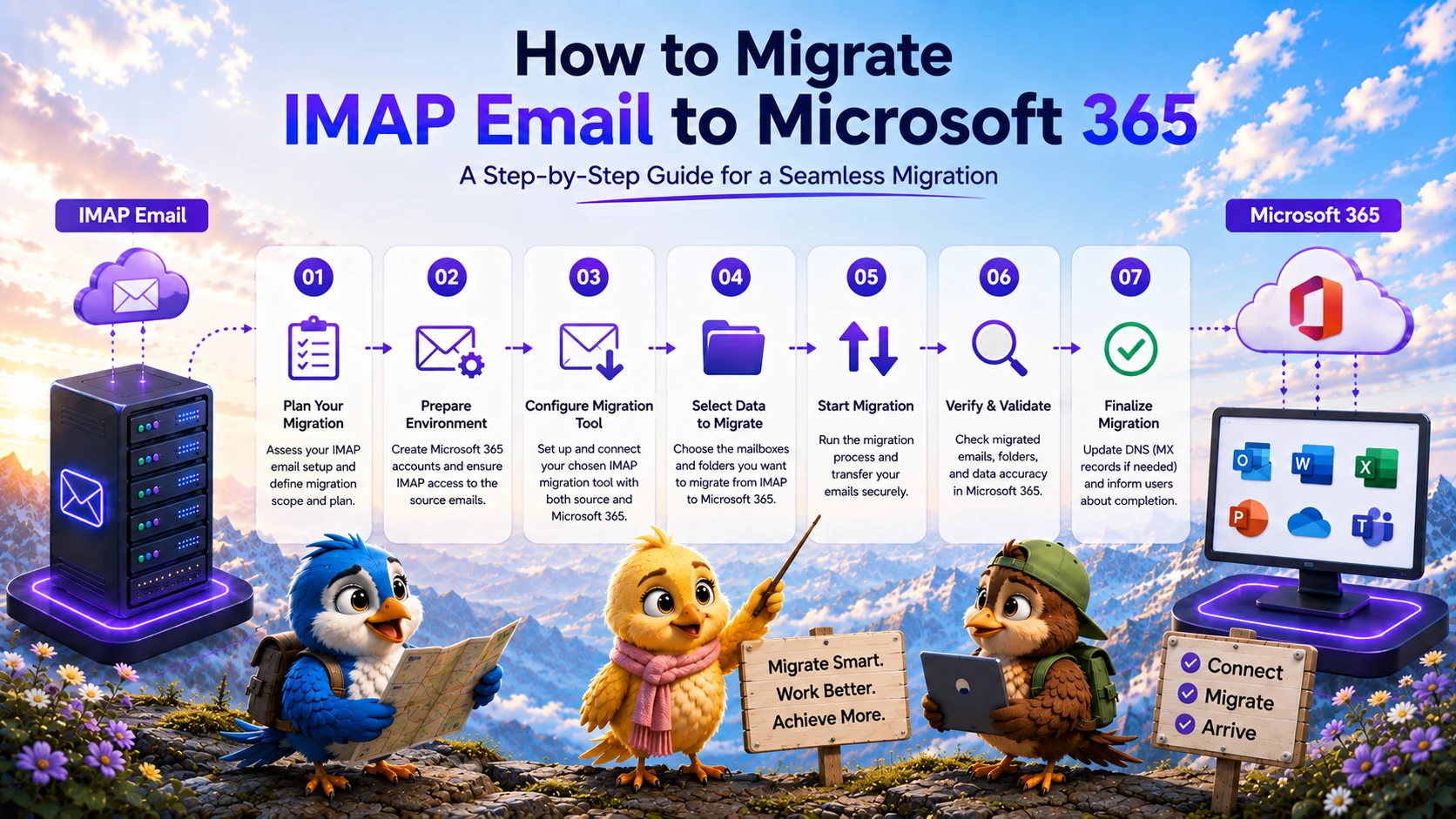
Moving an organization’s email infrastructure into the Microsoft cloud is a major undertaking. Whether you are transitioning from a legacy on-premises server, a Linux-based cPanel host, or another third-party provider, an IMAP migration to Microsoft 365 is often the most direct path to consolidate your data.
While Microsoft provides native tools, managing an IMAP migration effectively requires a deep understanding of the protocol's limitations, careful tenant preparation, and a structured cutover plan to avoid data loss.
What Is IMAP to Microsoft 365 Migration?
An IMAP to Microsoft 365 migration involves using the IMAP protocol to read email data from a source mail server and transferring it into Exchange Online mailboxes within a Microsoft 365 tenant. The migration tool connects to the source server using IMAP (usually over port 993) and connects to Microsoft 365 using Microsoft Graph APIs or Exchange Web Services (EWS) to deposit the data.
When to Use IMAP Migration
You should rely on an IMAP migration when the source mail server does not provide a dedicated migration API. Common scenarios include:
- Migrating from legacy servers like Dovecot, Courier, or Zimbra.
- Moving business mailboxes from consumer ISPs or standard web hosting providers.
- Migrating from environments where you only have standard user credentials and IMAP access.
What Data Can Be Migrated?
Because you are relying on IMAP to extract data from the source, you are bound by IMAP's constraints. You can successfully migrate:
- All standard email folders (Inbox, Sent Items, Drafts, Trash).
- Custom folders and deep folder hierarchies.
- Email messages and their inline or attached files.
- Read/unread status flags.
What IMAP Does Not Migrate
IMAP is strictly an email protocol. It has no awareness of other personal information management (PIM) data. An IMAP migration will not transfer:
- Contacts and Address Books.
- Calendars and meeting requests.
- Tasks and Notes.
- Server-side email forwarding rules or out-of-office replies.
Microsoft 365 Preparation
Before you can migrate emails from one IMAP server to another or to Microsoft 365, the destination tenant must be fully prepared.
- Verify your custom domain in the Microsoft 365 Admin Center.
- Create the target user accounts in Azure Active Directory (Entra ID).
- Assign valid Exchange Online licenses to every mailbox receiving data.
- Ensure an administrator account exists with the Global Administrator role to authorize the migration application.
Source IMAP Preparation
If the source server enforces Multi-Factor Authentication (MFA), you must generate App Passwords for every migrating user, as automated migration tools cannot respond to SMS or authenticator prompts. Additionally, verify that the source server does not aggressively throttle concurrent connections, which can cause common IMAP migration errors.
Mailbox Mapping
Create a CSV file that maps the source email address and password (or app password) to the corresponding Microsoft 365 User Principal Name (UPN). Review this IMAP email migration checklist to ensure you don't miss shared mailboxes or aliases during the mapping process.
Step-by-Step Migration
Pilot Migration
Never attempt a full cutover without testing. Select two or three non-critical mailboxes and run a pilot migration. Check the Microsoft 365 destination to verify that folder hierarchies are intact and that large attachments transferred correctly. Verify that Microsoft 365 did not flag the inbound historical emails as spam.
Bulk Migration
Once the pilot is verified, upload your mapping file to your migration tool and initiate the bulk transfer. Depending on the volume of data, this initial synchronization may take several days. Users can continue to work in their old mailboxes during this time.
Migration Limits and Considerations
Microsoft 365 enforces specific message limits. For example, messages exceeding Microsoft's maximum attachment size limit (typically 35MB to 150MB, depending on configuration) will not be accepted. Ensure your migration tool gracefully logs these skips rather than halting the entire batch.
Incremental Synchronization
After the bulk migration finishes, the destination mailboxes will be missing any new emails that arrived during the transfer. Run an incremental (delta) synchronization right before your planned cutover to capture these new messages.
MX Cutover
Update your domain’s MX records to point to Microsoft 365 (`yourdomain-com.mail.protection.outlook.com`). Also, update your SPF, DKIM, and DMARC records to authorize Exchange Online. Because DNS propagation takes time, run one final delta sync 24 hours after the cutover to retrieve any straggler emails delivered to the old server.
Post-Migration Verification
Instruct users to log into Outlook or the Microsoft 365 portal. Verify that internal mail flow between users is functioning and that external inbound emails are routing correctly to the new tenant.
Manual vs Migration Tool
While a user can manually export a PST file from their old server and import it into Outlook connected to Microsoft 365, this approach is unmanageable for IT administrators at scale. A dedicated migration tool provides centralized logging, batch management, and automated delta syncs without requiring user intervention.
MigrateZilla for IMAP Migration
If you are planning an enterprise transition to Microsoft 365, MigrateZilla offers a robust, cloud-based platform designed for IT teams. It handles rate limiting, authenticates securely to Microsoft 365 via modern OAuth, and provides infinite delta synchronizations to ensure zero data loss during your cutover.
Frequently Asked Questions
Will an IMAP migration to Microsoft 365 transfer my calendar events?
No. The IMAP protocol only handles email messages and folder structures. Calendars, contacts, and tasks must be migrated separately, either by exporting them manually (e.g., via CSV or PST) or using a source-specific API migration tool if available.
How do I avoid downtime during the migration?
Avoid downtime by performing the bulk migration in the background while users continue to work on the old server. Then, execute an incremental delta sync right before you update the DNS MX records. This ensures the new Microsoft 365 mailboxes are fully populated before users ever log in.
What happens if a user changes their password during the migration?
If you are using user passwords for source IMAP authentication, changing the password will break the migration tool's connection, resulting in authentication errors. It is highly recommended to enforce a temporary password freeze or use generated App Passwords that users cannot change.
MigrateZilla Technical Team
Technical guides from the MigrateZilla team covering email migration, IMAP, mailbox transfers, and related IT administration topics.
Ready to plan your IMAP migration?
MigrateZilla helps administrators transfer mailboxes between compatible IMAP servers with background migration and incremental synchronization.
Start Migration