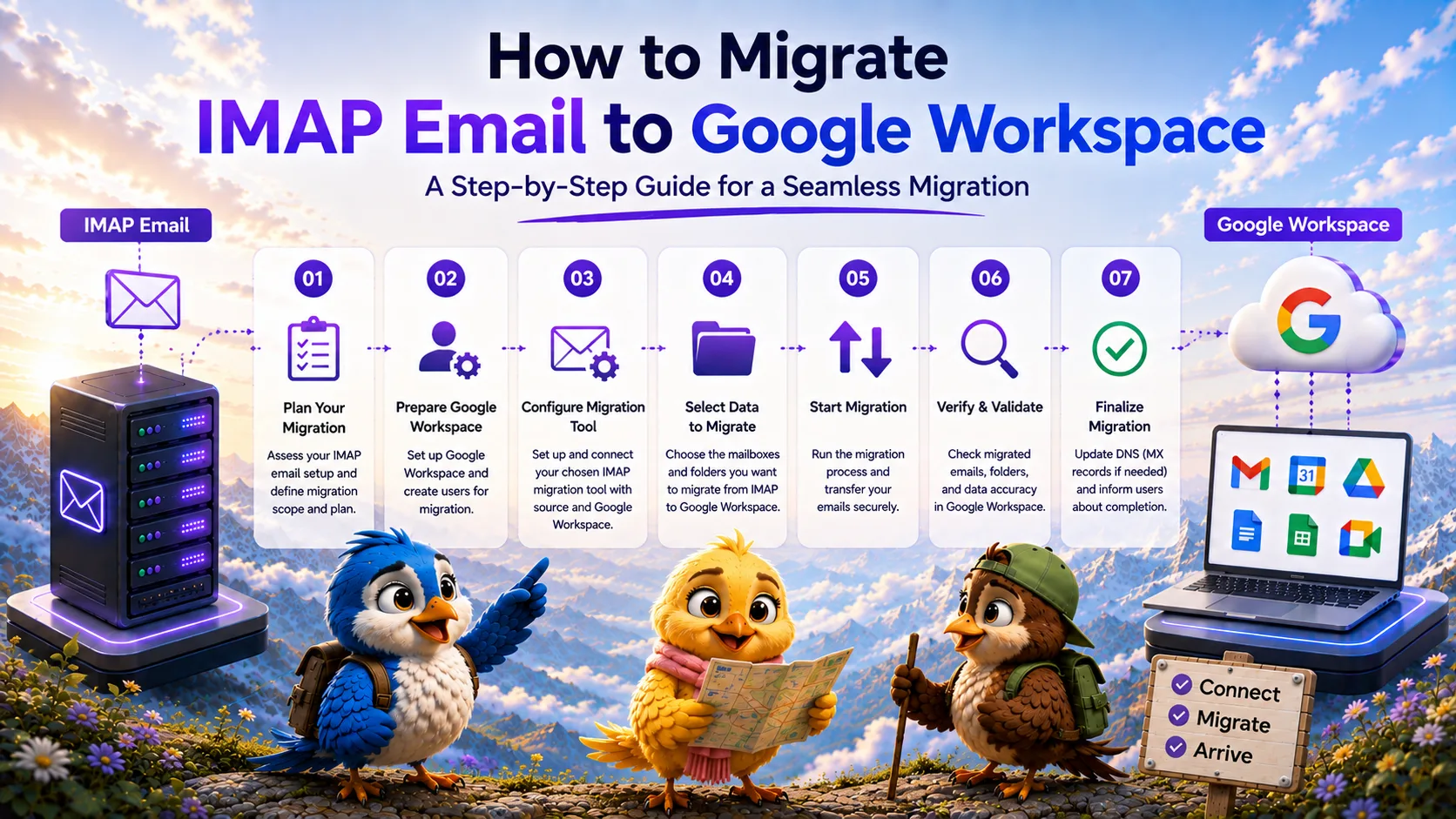
Moving to Google Workspace provides organizations with a robust, modern email infrastructure. However, getting your existing historical email data into Google’s environment securely requires careful planning. If your source mail server does not support advanced API exports, an IMAP migration to Google Workspace is the standard approach.
This guide covers the technical steps required to move mailboxes from an IMAP-compatible server into Google Workspace without disrupting your end users.
What Is IMAP to Google Workspace Migration?
An IMAP to Google Workspace migration extracts messages, folders, and metadata from a source IMAP server (like a Linux cPanel server or an older Exchange server with IMAP enabled) and deposits that data into destination Gmail mailboxes within a Google Workspace domain. The migration application communicates with the source via the IMAP protocol and pushes the data to Google, typically using Google's Gmail API or IMAP implementation.
When Should You Use IMAP Migration?
You will need to use IMAP when you are migrating away from an environment that lacks a dedicated migration API. If you are learning how to migrate emails from one IMAP server to another, the same principles apply here. You should use IMAP when migrating from:
- Generic cPanel or Plesk web hosting environments.
- Legacy open-source mail servers like Dovecot.
- Local or regional ISPs that only offer standard IMAP access.
What Data Can Be Migrated?
The IMAP protocol governs what data can be extracted from the source server. During the migration, you can expect to transfer:
- All emails within the Inbox, Sent, Drafts, and custom folders.
- Attachments and inline images.
- Message read/unread status.
What Cannot Be Migrated Through Standard IMAP?
IMAP is strictly designed for email. It cannot extract or migrate:
- Contacts and Google Contacts data.
- Calendars, meeting invitations, and Google Calendar events.
- Tasks, rules, and server-side signatures.
Google Workspace Preparation
Before starting the data transfer, the Google Workspace destination environment must be fully configured. Ensure you have:
- Verified your custom domain in the Google Workspace Admin console.
- Provisioned all user accounts that will receive migrated data.
- Assigned appropriate licenses to those users.
- Enabled API access or verified that the migration application has the necessary OAuth scopes to write to the destination mailboxes.
Source IMAP Preparation
To prevent common IMAP migration errors, you must prepare the source server. Ensure you have the exact IMAP hostname and port (usually 993). If users have Multi-Factor Authentication (MFA) enabled on the source, you will likely need to generate App Passwords for the migration tool to bypass MFA prompts.
Account and Mailbox Mapping
To tell the migration tool where to send the data, you must create a mapping CSV. This file links the source credentials (email address and password/app password) to the corresponding Google Workspace email address. Before executing the bulk migration, verify this mapping against our IMAP email migration checklist to ensure no aliases or shared accounts were missed.
Step-by-Step Migration
Pilot Migration
Always run a test. Select 2-5 mailboxes and run a pilot migration. Log into the Google Workspace accounts to verify that deep folder hierarchies are intact. In Gmail, folders are represented as "Labels." Ensure that the source IMAP folders correctly converted into Gmail Labels and that emails are properly categorized.
Bulk Migration
Once the pilot completes successfully, start the bulk migration. This initial synchronization will transfer the vast majority of the historical data while users continue to work normally on the source server.
Incremental Synchronization
Because the bulk migration can take days, new emails will arrive on the source server during the process. To capture these, you must run an incremental (or delta) synchronization. This sync compares the source and destination and transfers only the new messages.
MX/DNS Cutover
When you are ready to make Google Workspace your live email system, update your domain’s MX records to point to Google (e.g., `smtp.google.com`). You must also update your SPF and DKIM records to ensure outgoing Gmail messages are not marked as spam. Run a final delta sync immediately after the MX cutover to catch any emails delivered to the old server during DNS propagation.
Verification
Perform a final check. Verify that users can log into Gmail, that their historical data is present, and that they can successfully send and receive new messages from external domains.
Manual vs Migration Tool
Do not attempt to migrate business accounts manually by connecting both the source and Google Workspace to a desktop client (like Outlook or Thunderbird) and dragging folders across. Desktop clients frequently crash during large transfers, consume massive local bandwidth, and provide no audit logs. Always use a dedicated server-to-server migration tool.
MigrateZilla for IMAP Migration
If you are executing a complex transition, MigrateZilla provides a fully automated platform for Google Workspace migrations. It securely handles the extraction of IMAP data, creates the corresponding Gmail Labels, manages rate limits, and supports infinite delta syncs to guarantee zero data loss during your cutover.
Frequently Asked Questions
How does Google Workspace handle migrated IMAP folders?
Google Workspace (Gmail) does not use traditional folders; it uses "Labels." During the migration, a professional IMAP migration tool will read the source folder hierarchy and recreate it as nested Labels in Gmail, applying those Labels to the migrated messages so the visual structure remains identical.
Will my users experience downtime during the migration to Google Workspace?
No. By performing the bulk migration in the background and executing a final delta sync right before you update the MX records, your users can transition seamlessly without missing any incoming emails or experiencing downtime.
Can I migrate contacts and calendars to Google Workspace via IMAP?
No. The IMAP protocol only transfers email data. To migrate contacts and calendars to Google Workspace, you must export them from the source system (e.g., as vCard and ICS files) and import them into Google Contacts and Google Calendar separately.
MigrateZilla Technical Team
Technical guides from the MigrateZilla team covering email migration, IMAP, mailbox transfers, and related IT administration topics.
Ready to plan your IMAP migration?
MigrateZilla helps administrators transfer mailboxes between compatible IMAP servers with background migration and incremental synchronization.
Start Migration